How to share your Obsidian vault across a small team
Obsidian isn’t traditionally seen as a collaboration tool-but it works surprisingly well for small teams. In case you don't have…
Launch offer – 40% off – until 10 March

This vault was built and tested to help small teams stay organised, focused, and flexible without spending all day managing a system.
This is an independent, unofficial template. It is not affiliated with, endorsed by, or supported by the Obsidian team or Dynalist Inc.
At its core, it combines an adapted PARA-style structure with dashboards and automations so work stays visible and easy to maintain.
The vault is organised around a few stable areas:
There’s also a lightweight capture layer (inspired by the Zettelkasten method) so you can save things fast without breaking flow – and sort when have a moment.
The system has been built so you do not need to think about organisation. Everything has a place. And if it doesn’t – then you can customise.
It has been designed around
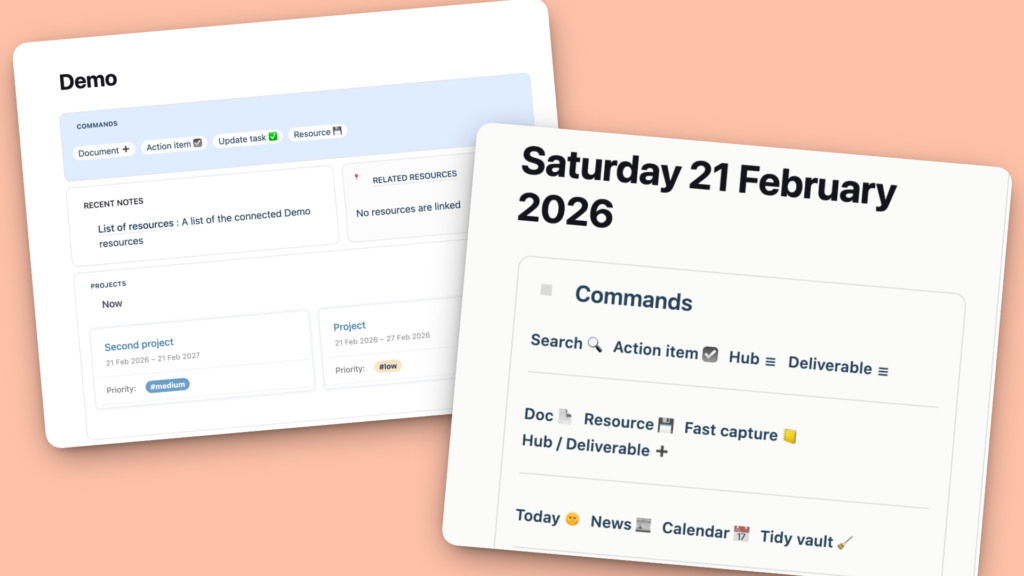
When you open the vault, the sidebar acts as your home base. It helps you:
Each Hub and Deliverable has its own dashboard. This is how everything stays connected automatically.
Using the dashboard buttons creates notes in the right places and keeps links consistent, so nothing gets lost and your queries stay reliable.
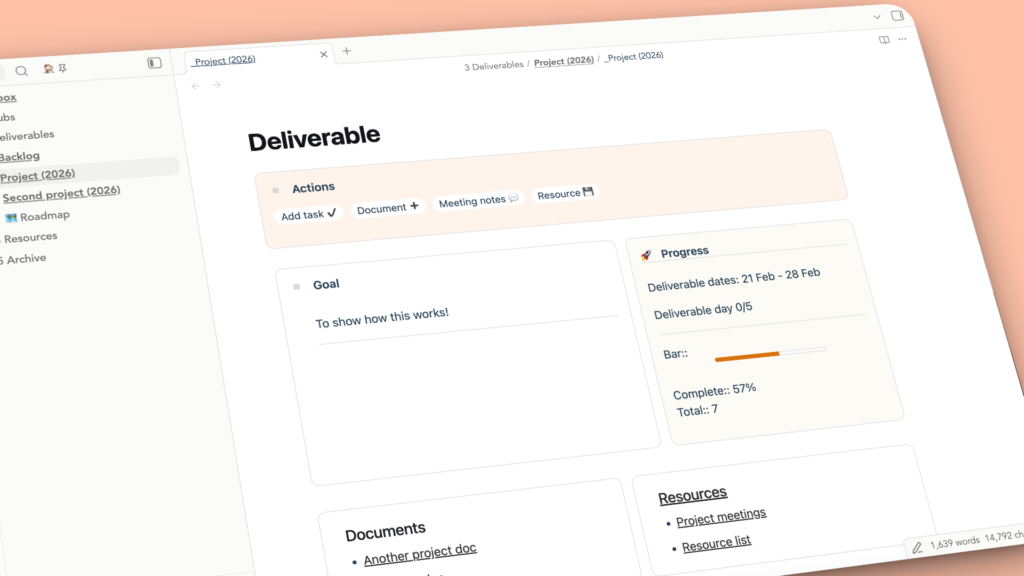
The backlog is a dumping ground by design – a place you can offload thoughts quickly without getting overwhelmed.
From there, you “commit” items by turning them into:
Only committed work appears in the active task views.
When you create a task, the capture flow ask (at a high-level) for impact, urgency, and required time and generates a priority score. That makes it easy to filter tasks by priority score and focus on what matters most.
If you prefer another task manager, the system can also run alongside it. With the Local REST API plugin (and a bit of technical setup), you can sync tasks – but it’s optional. The vault works fully on its own.
You have one central list, that is then filtered and manipulated by what you need to view.
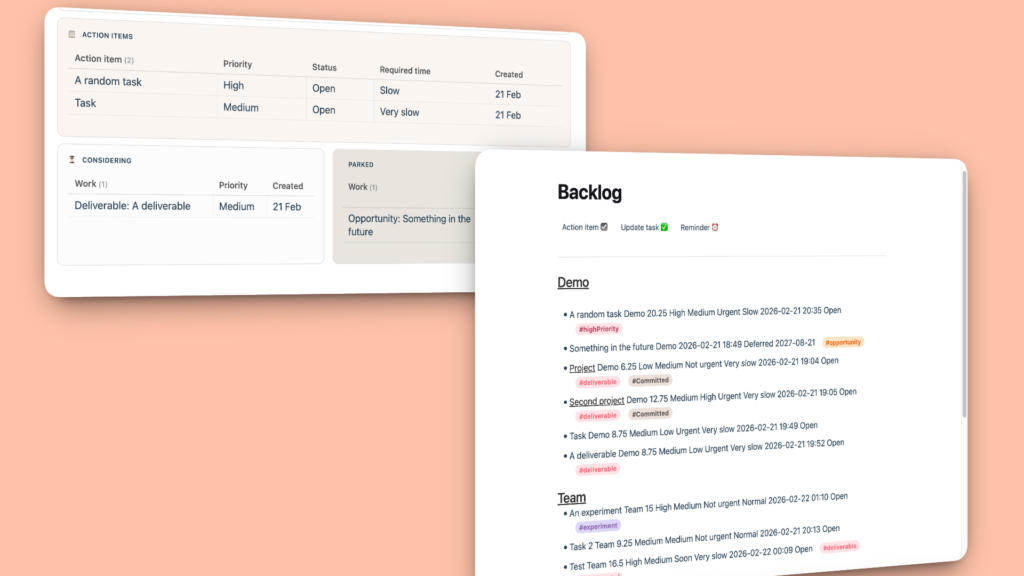
When something’s done, archive it – without losing access.
You can run the archive command from a note or dashboard and the vault:
You can archive a whole Deliverable folder too by archiving on the dashboard page, and the system will move everything cleanly while keeping metadata consistent.
A Team Hub is included to get you started. In it I have added:
The work log acts like a memory of what you created and changed – helpful when you remember “I made that thing” but can’t find it. When you make a new doc, add a resource, create a project. Then it saves there.
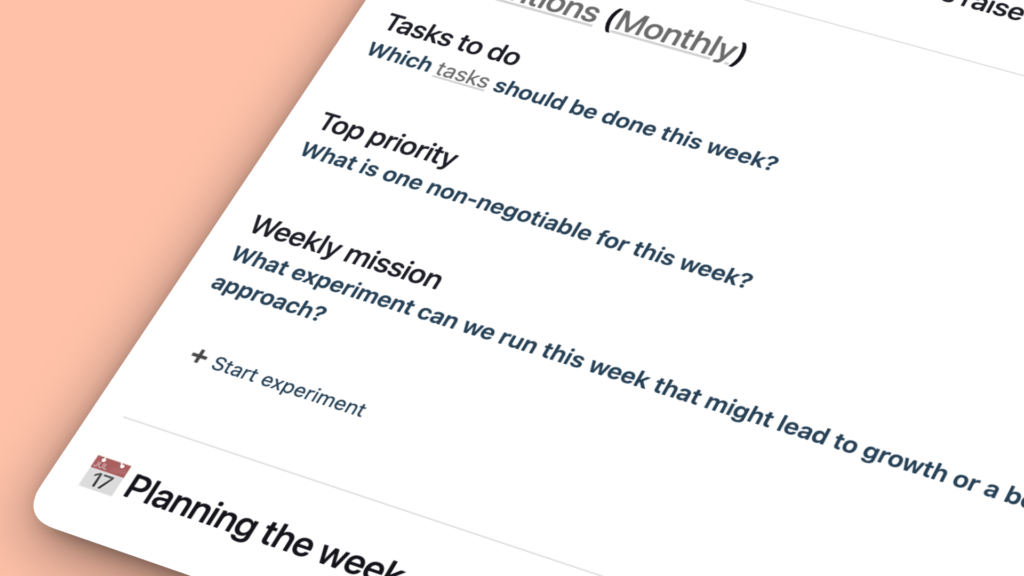
Planning and reflection are easy to skip when you’re busy, but they’re what keep a team aligned.
The vault includes lightweight templates for:
Finally, it is good to know that this setup is very flexible, and completely customisable.
You can rename hubs, tweak prompts, change labels/emojis, edit templates, adjust YAML keys, or update styles. If you want to make big structural changes, doing a vault-wide find/replace in VS Code is often the cleanest way – just be careful not to accidentally overwrite real note content.
This vault is meant to be a strong foundation: structure stays lightweight, work stays visible, and the system stays adaptable as your startup evolves.
Buy the template here.